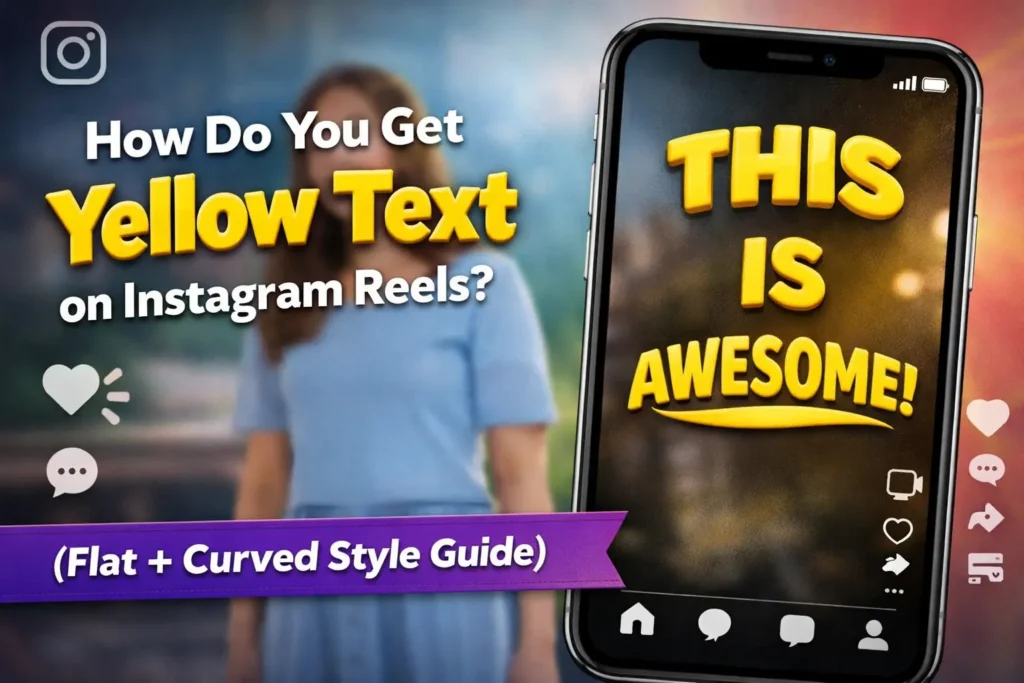
How Do You Get Yellow Text on Instagram Reels? (Flat + Curved Style Guide)
If you’ve been scrolling Instagram Reels lately, you’ve probably noticed that bold yellow text showing up everywhere. Some look simple and flat, while others appear slightly curved or tilted—almost like 3D text. When you try to recreate it, though, it either looks dull or completely different.
I had the same problem at first. The truth is, there are actually two different types of yellow text styles—one you can create inside Instagram, and one that requires an external app. Once you understand the difference, it becomes much easier to get the exact look you want.
How Do You Quickly Get Yellow Text on Instagram Reels?
Open Instagram Reels editor
Tap the text (Aa) tool
Select Strong or Classic font
Choose a bright yellow color
Enable background highlight
Adjust size and position
What Is the Yellow Text Trend on Instagram Reels?
The yellow text trend is a popular style used in viral Reels
to make captions stand out. It’s bold, high contrast, and easy to read
even on fast videos.
👉 Two versions of this trend:
Flat yellow text (inside Instagram)
Curved / 3D yellow text (editing apps)
Most people mix these styles, which is why their results don’t match viral videos.
What Font Creates the Yellow Text Effect on Instagram?
There is no official yellow font name on Instagram.
Strong
Best for bold viral text
Classic
Clean and simple style
The final look depends on:
Font style
Color
Background highlight
If your text looks thin or faded, the issue is usually the font style, not the color.
Add Yellow Text on Instagram Reels (Step-by-Step)
📱
Step 1: Open Reels Editor
Tap the + icon and select Reel.
🎥
Step 2: Add Your Video
Record or upload your clip before editing text.
✍️
Step 3: Tap Text Tool
Tap Aa to open the text editor.
🔤
Step 4: Choose Font
Select Strong for bold and clear text.
🟡
Step 5: Set Yellow Color
Pick a bright yellow shade for maximum visibility.
✨
Step 6: Enable Background
Turn on background highlight so your text stands out.
📐
Step 7: Adjust Placement
Resize and position text so it stays clear on screen.
🔥 Curved Yellow Text on Reels
👉 Important: Instagram cannot create curved or 3D text directly.
Use apps like CapCut or Edits by Instagram.
1. Open CapCut
Import your video to start editing.
2. Add Text
Tap Text → Add Text and type your content.
3. Set Style
Color → Bright yellow
Font → Bold
⭐ Key Step: Go to Style → Effects → 3D / Perspective / Curve
OR Animation → Tilt / Skew
4. Create Curve Effect
Use tilt or curve options to get that viral angled text look.
Final Touches:
Add shadow or glow
Slightly tilt the text
Increase size for better visibility
How to Create Viral Instagram Text Using the Edits App
Step-by-step method that matches the beat and grabs attention
If you’ve seen Instagram Reels where text hits perfectly with the beat and instantly grabs attention, you don’t need any extra app.
You can create the same effect using Instagram’s built-in editor.
Here’s how to do it properly.
Step 1: Open the Reels Editor
Start by opening Instagram and tapping the + icon, then choose Reel.
Upload your video or record directly inside the app.
Step 2: Add Your First Text Layer
Tap the “Aa” text icon and type a short phrase.
Keep it simple. Short text works best — usually 1 to 3 words.
This changed everything
Wait for it
You need this
Step 3: Choose a Clean, Bold Font
Pick a font that is easy to read.
Bold styles
White text with black shadow or background
This helps your text stand out clearly on any video.
Step 4: Apply Text Animation
Tap on your text and select “Animate.”
Pop
Fade
Slide
Avoid overdoing animations. Clean and fast works better.
Bonus: Create Viral Curved Yellow Text
To get that rounded yellow text style you see in viral reels, you need to combine effects.
Use this combo:
Curve → gives the rounded shape
Perspective or Skew → adds angle
Fisheye (very low) → adds slight bubble feel
Curve = shape
Skew = angle
Fisheye = round look
Keep fisheye low. Too much will distort your video.
Use bright yellow + bold font + slight shadow for best results.
Step 5: Sync Text With the Beat
This is the key step.Tap your text and open the timeline at the bottom.
Drag the text so it appears exactly when the beat hits.
Instead of showing all text at once, break it into parts.
First beat → I tried this
Next beat → and it worked
Each line should match a beat or sound change.
Step 6: Use Word-by-Word Text Style
Split your sentence into separate words.
Beat 1 → This
Beat 2 → is
Beat 3 → insane
Add multiple text layers and time each one.
This creates a fast, catchy feel.
Step 7: Keep Text in the Center
Always place your text in the middle.
Avoid top and bottom because buttons can cover it.
Step 8: Highlight Important Words
Use ALL CAPS
Increase size
Change color (use less)
Step 9: Preview Your Reel
Play your reel a few times.
Text matches the beat
Timing feels smooth
No early or late text
Small fixes make a big difference.
Step 10: Post Your Reel
Add a short caption and hashtags.
Use trending audio and publish.
Simple Formula for Viral Text Reels
Short hook text
Text synced with beats
Word-by-word appearance
Bold, clear font
Centered placement
If you follow this, your reels will look cleaner and more engaging.
If your text doesn’t match viral Reels, this is why:
You’re using flat Instagram text instead of curved style
Wrong font (not bold enough)
Yellow color is dull
No background or depth
Fixing these instantly improves results.
Can You Get Curved Text Without Apps?
No.
👉 Instagram only supports:
Flat text
Basic styling
For curved or 3D text, you must use an external editor.
Which Apps Help Create Curved Yellow Text for Reels?
CapCut – easiest and most popular
Edits (By Instagram)-Simple and fast
Alight Motion – more control
VN Editor – simple and clean
How Can You Make Your Instagram Text Stand Out More?
Keep text short (3–6 words)
Use bold fonts
Use high contrast (yellow + dark background)
Avoid clutter
Sync text with video
FAQs About Yellow Text on Instagram Reels
There is no specific name. Most people use Strong or Classic.
You need to use apps like CapCut or edits and apply 3D or perspective effects.
No, Instagram only supports flat text.
Key Takeaways
There are two types of yellow text: flat and curved
Instagram can only create flat text
Curved text requires apps like CapCut
Strong font + bright yellow works best
Small styling changes make a big difference
Once you understand the difference between flat and curved text, everything becomes much easier. Most people try to recreate a 3D-style effect using Instagram alone, which is why it never looks right. Use Instagram for simple text, and CapCut for that viral curved look—and your Reels will instantly feel more polished and professional.