How to Curve Text on an Instagram Story (iPhone, Android & iOS)
Curved text is everywhere on Instagram right now — that bubbly, arched, or warped style you keep seeing on aesthetic Stories and Reels covers. It looks effortless, but there’s a catch: Instagram’s built-in Stories editor doesn’t have a curve or warp text tool.
So how does everyone else do it? They use a third-party app, save the image, and upload it. And while you’re levelling up your Story game, it’s worth knowing that the font matters just as much — our Instagram font generator lets you create stylish text that copies directly into any app.
This guide covers every method — from the quickest route on iPhone and Android to the trending fisheye effect that’s all over your feed.
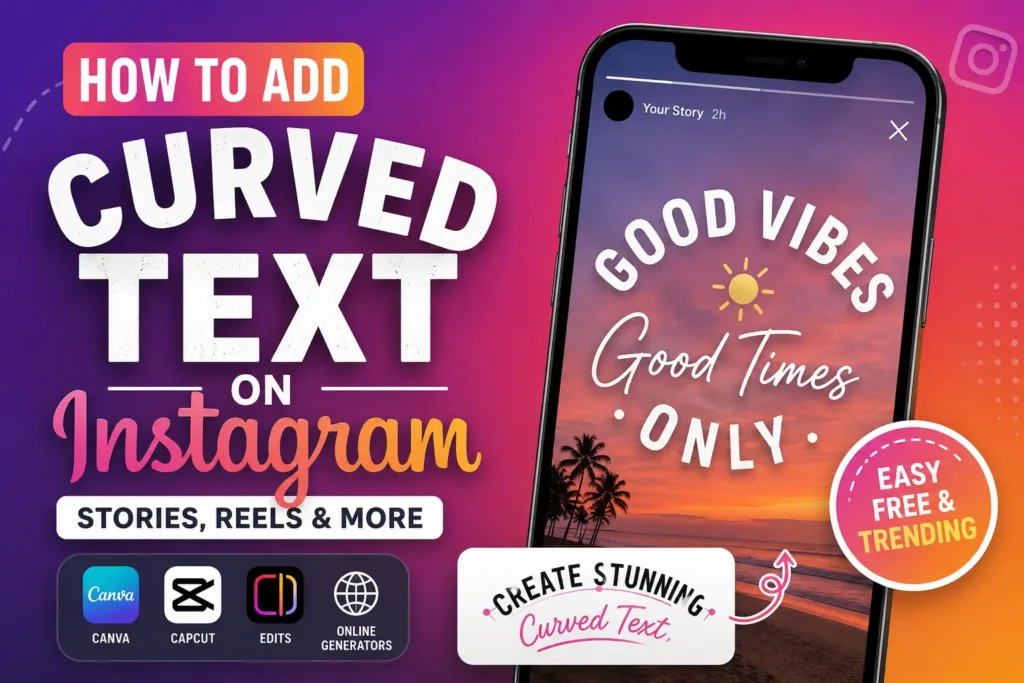
Instagram does not have a native curved text feature. To curve text on an Instagram Story, you need to create the text in an external app like Canva, CapCut, or Instagram’s Edits app, save it to your camera roll, and then upload it as your Story background or overlay.
Key Takeaways
Everything you need to know at a glance.
Instagram Stories has no built-in curve, warp, or arc text tool as of 2026.
Canva (free, mobile app) is the easiest method — it has a dedicated Curve slider inside the Effects menu.
CapCut and the Instagram Edits app work best when adding curved text over video clips.
The Advercase font combined with the Fisheye effect in CapCut produces the popular bubbly text trend.
The same methods work on iPhone (iOS) and Android — the apps are available on both platforms.
You can also use a curved text generator website on desktop and save the image to your phone.
Pairing curved text with a fancy text generator gives you even more creative control over how your Stories look.
Once saved to your camera roll, upload the image as a Story background or use Instagram’s sticker tool to layer it.
Why Instagram Doesn’t Have a Curved Text Tool
Instagram’s Stories editor keeps things simple by design. You get basic text styles, fonts, and colors — but no path-based text, no warp controls, and no arc sliders. Meta hasn’t added this feature natively, even as the curved text aesthetic has grown into one of the most recognizable Instagram trends of the past couple of years.
The workaround is reliable, though, and most creators already use external apps for their Story designs anyway. If you want to go further than curved text, there’s a whole world of stylish fonts for your Instagram bio and custom text effects that work across the platform — none of which require a paid subscription.
Curve Text Using Canva (Easiest Method — iPhone & Android)
Canva’s mobile app is free and includes a proper Curve effect with an adjustable slider. This is the fastest route for static images.
Steps:
- Open the Canva app and tap the + icon to create a new design.
- Select Instagram Story as your canvas size (1080 × 1920 px).
- Tap Text in the bottom menu and choose Add a heading.
- Type your text and pick your font.
- With the text box selected, tap Effects in the bottom toolbar.
- Scroll down and tap Curve.
- Drag the slider left or right to increase or decrease the curvature.
- When you’re happy with the result, tap Download (or Share → Save Image).
- Open Instagram, swipe right to open the Story camera, and upload the saved image from your camera roll.
Drag the slider right for an upward arc, left for a downward curve. The free Canva plan includes the Curve effect — no Pro subscription needed.
Before designing, use our cool font generator to preview and choose a font style you love — then match it in Canva’s font library.
Curved Text Over Video Using CapCut or Instagram Edits
If you’re working with a video clip rather than a still image, Canva isn’t ideal. CapCut and the standalone Edits app by Instagram are better fits here, and they’re responsible for the trending fisheye-warped text style.
Steps:
- Open CapCut or the Edits by Instagram app and import your photo or video.
- Tap Text and type your message.
- In the font style panel, select Advercase — this rounded, uppercase font is the one most creators use for this look.
- Go to Effects and select Fisheye to give the text a warped, bubbly curve.
- Resize and reposition the text on the frame.
- Export and save the video to your phone.
- Upload it directly to your Instagram Story.
The Fisheye effect technically distorts the text rather than placing it on a true curve path — but visually, it produces the same aesthetic that’s trending right now.
If you love experimental text effects, the freaky font generator creates unusual styles you can paste directly into Stories captions.
Use a Curved Text Generator (Desktop)
If you’re working from a laptop or desktop computer, a curved text generator tool lets you type text, choose an arc angle, and download a PNG with a transparent background.
Search for “curved text generator” in Google and you’ll find several free browser-based tools. Once you download the image, transfer it to your phone via AirDrop, Google Photos, or a messaging app.
Want to take it further? Our fancy text generator creates Unicode-based stylish text you can copy and paste directly into captions, bios, and comment sections — no image export needed.
Curved Text on iPhone vs Android: Is There a Difference?
Not really. The apps above — Canva, CapCut, and Edits — are all available on both iOS and Android. The steps are nearly identical on both platforms. The only difference you might notice is the layout of the export button or the exact location of the Effects panel, which can vary slightly between app versions.
There is no iPhone-exclusive or Android-exclusive method that gives better results.
If you also post on Snapchat, it’s worth knowing that stylish fonts work differently on Snapchat — that guide explains which font tricks carry over and which ones don’t.
Comparison: Which App Should You Use?
Choose the option that best matches your workflow and content style.
| Method | Best For | Platform | Cost | Curve Quality |
|---|---|---|---|---|
| Canva | Static images | iOS & Android | Free | Clean arc/curve |
| CapCut | Video clips | iOS & Android | Free | Fisheye/warp style |
| Instagram Edits | Video clips | iOS & Android | Free | Fisheye/warp style |
| Curved text generator | Desktop workflow | Web (browser) | Free | Precise arc control |
| Online font generator | Captions & bios | Any device | Free | Unicode text styles |
How to Use Curved Text With Custom Fonts
Here’s something most tutorials skip: the font you apply the curve to changes the entire visual result. A thin minimalist font on a gentle curve looks editorial. A chunky bold font on a tight curve looks like a retro badge. The combination matters.
Our fancy text generator and cursive font generator let you preview dozens of styles instantly.
For a darker aesthetic, the gothic font generator produces styles that look striking arched over a moody photo background.
Try the mirror text generator for a flipped-text effect that pairs interestingly with a curved layout.
For understanding why certain decorative fonts behave differently across apps, our explainer on Unicode fonts is a clear and practical read.
How to Add Curved Text to Instagram Reels (Not Just Stories)
The same workflow applies to Reels. Create your curved text in Canva or CapCut, export as a video or image, and upload it as your Reel or as a Reel cover.
If you’re making a Reel cover with curved text, keep it short, bold, and high-contrast.
For Reels that use color as part of the design, our guide on how to get yellow text on Instagram Reels pairs well with the curved text technique.
Common Mistakes to Avoid
Using Too Much Curve
A subtle arc looks intentional; a full circle looks like an accident. Start with a small curve value and adjust from there.
Forgetting to Export at Full Resolution
Canva defaults to a compressed download on free accounts. If your text looks blurry on your Story, try downloading at the highest available quality.
Using a Font That Doesn’t Suit the Curve
Thin serif fonts can look awkward on a strong arc. Bold, rounded fonts work much better. Our guide on how to use online font generators for Instagram and TikTok covers how to match font styles to your content type.
Pasting Unsupported Characters
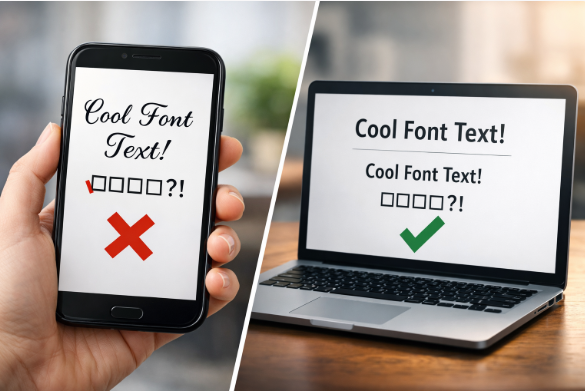
Some decorative fonts use Unicode characters that render as boxes on certain devices. Read our explainer on why some fancy fonts don’t work on certain apps or devices before you publish anything important.
Expert Tips for Better Curved Text on Instagram
Layer Curved Text Over a Blurred Background
Export your curved text on a transparent or dark background from Canva, then layer it in Instagram’s editor over your photo.
Try Opposite Curves for a Headline + Subheadline Pairing
One line curved upward and one curved downward creates a classic badge or stamp look that works well for event announcements and product Stories.
Combine a Generator Font With Canva’s Curve Tool
Create stylish text using our Instagram font generator , screenshot it, bring it into Canva, and apply the curve from there. For inspiration, see 25 creative ways to use fancy text online .
Don’t Overlook the Calligraphy Option
The calligraphy font generator produces styles that look beautiful on a gentle arc — especially for wedding, lifestyle, and personal branding Stories.
Frequently Asked Questions
Does Instagram have a curve text feature?
No. As of 2026, Instagram’s Stories editor does not include a curve, arc, or warp text option. You need to use a third-party app and upload the result.
How do I curve text on an Instagram Story on iPhone?
Use the Canva app (free on iOS). Open a new Instagram Story canvas, add your text, tap Effects, and select Curve. Save the image and upload it to your Story.
How do I curve text on an Instagram Story on Android?
The same method works on Android. Download the Canva app from the Google Play Store, follow the same steps, and upload the saved image to Instagram.
What is the Advercase font trend on Instagram?
Advercase is a bold, rounded uppercase font available in CapCut and the Edits app. When combined with the Fisheye effect, it creates the warped, bubbly curved text style that’s been trending across Instagram and TikTok. For more trending font ideas, the cool font generator is a good place to browse.
What is the fisheye text effect?
The fisheye effect distorts text so the center appears larger and the edges curve outward — similar to a wide-angle camera lens. In CapCut and Edits, applying fisheye to text produces an organic, curved appearance that mimics hand-lettered arched text.
Can I use curved text on Instagram Reels, not just Stories?
Yes. Any of the methods above produce a saved video or image file you can upload to Reels just as easily as to Stories.
Is there a curved text generator I can use online?
Yes — searching “curved text generator” in Google returns several free browser tools. For Unicode stylish text you can paste directly, the fancy text generator is a faster option for captions and bios.
Does the same curved text trick work on TikTok?
Yes — CapCut is built by the same company as TikTok, so the workflow is identical. You can also check our guide on how to get glitch text on TikTok for a different effect that’s popular on short-form video.
Final Thoughts
Curved text on Instagram Stories is one of those effects that looks custom but is genuinely easy to pull off once you know which app to use. Canva handles it best for photos, and CapCut or Edits is the go-to for video. Neither option requires any design experience, and both are free.
The font you choose for that curve matters more than most people realise. Spend two minutes on the fancy text generator or cursive font generator to find a style that fits your aesthetic — then bring it into Canva and apply the curve.